
Using the console
The console is served by Shipyard itself at the address in listen — http://127.0.0.1:8080 by default.
Connect
The pill in the top bar shows your access:
| Indicator | Meaning |
|---|---|
| Read-only | No token entered. You can browse, but not queue, cancel or retry. |
| Connected | Token accepted. All actions are available. |
| Token required | The server protects reads too. Enter the token to see anything. |
| Server unreachable | Shipyard is not answering. |
Click the pill and paste the value of the variable named by runtime.api_token_env. The token stays in the tab's memory only; reloading the page forgets it.
Runs
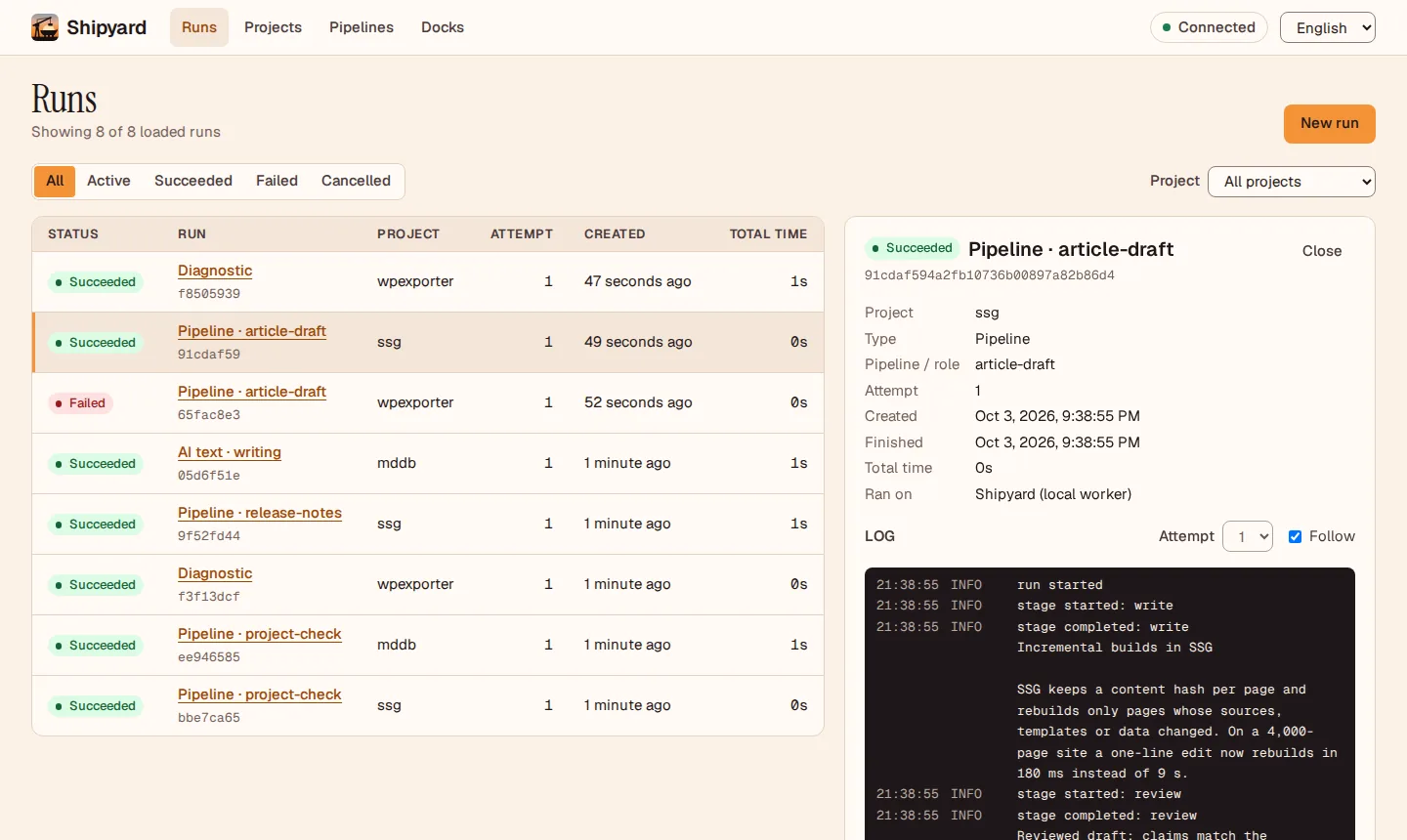
The Runs view lists the latest runs, newest first, and refreshes every five seconds.
- Filter by status — All, Active, Succeeded, Failed, Cancelled — or by project.
- Load older runs pages back through history.
- Click a run to open its panel: project, type, attempts, timings, the error if it failed, and the log.
Queue a run
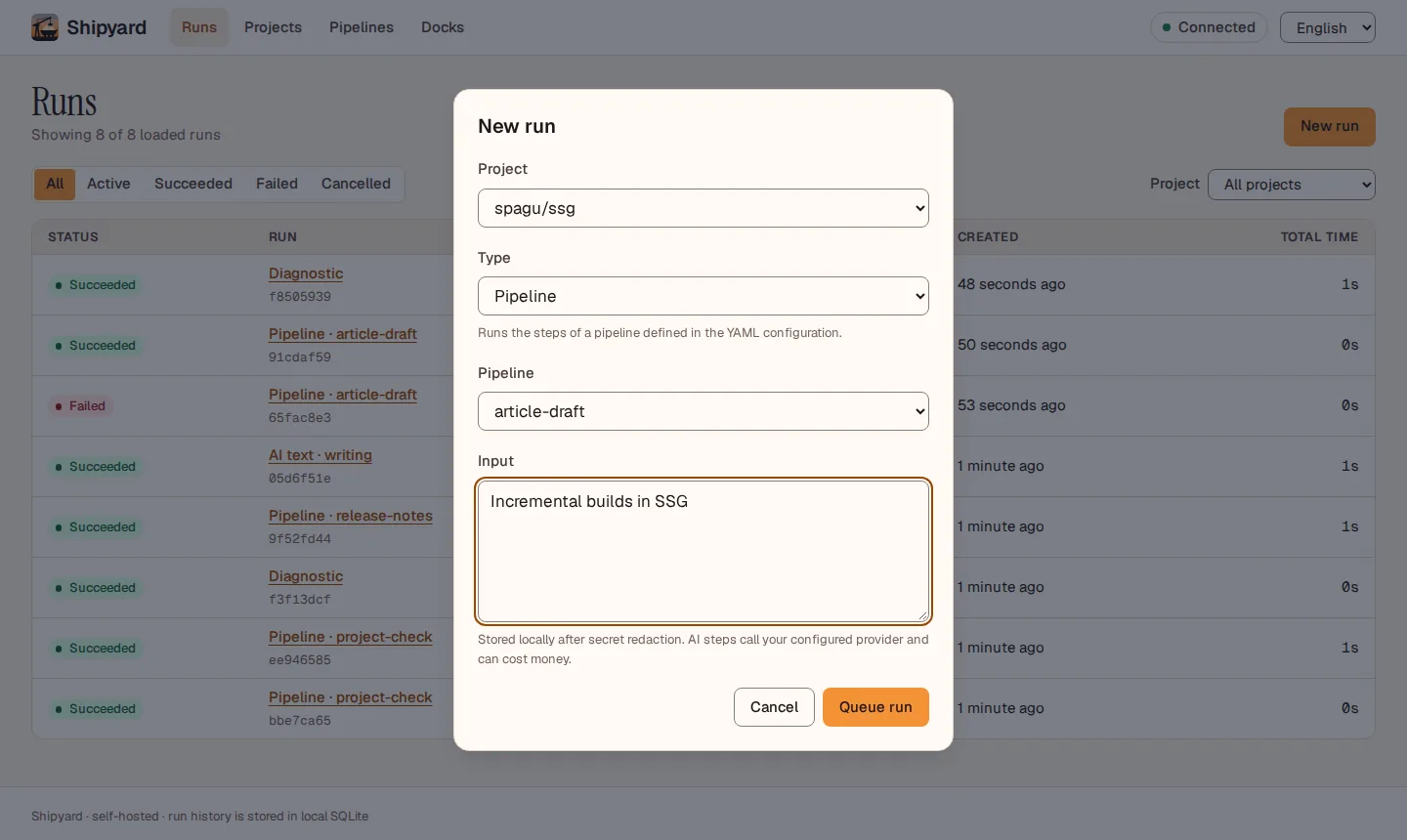
New run opens a form. Pick a project and a type:
| Type | What it does | Needs |
|---|---|---|
| Diagnostic | Checks that the project is configured and enabled. | Nothing else |
| Pipeline | Runs a pipeline from your configuration. | A pipeline name; optional input |
| AI text | Sends one prompt to the model routed for the role you pick. | A role and a prompt |
AI runs call your provider and can cost money.
Follow the log
The log tails live while the run is active; untick Follow to scroll freely. Runs that were retried after a crash have several attempts — switch between them with Attempt.
Cancel and retry
- Cancel run stops a queued run at once and asks a running one to stop at the next safe point.
- Retry as new run queues a failed or cancelled run again with the same input. The original stays in the history.
Projects
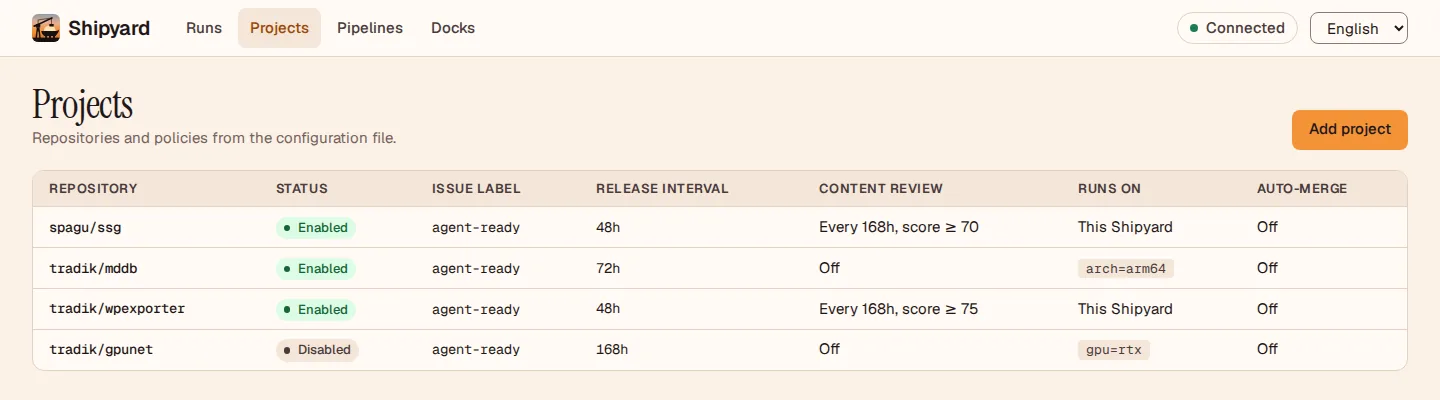
Projects lists the repositories in your configuration with their issue label, release interval, content review and where they run — this Shipyard or ships with matching labels.
Add project opens a form: ID, repository, issue label, release interval, optional ship labels and content review. Shipyard validates it, appends it to the configuration file — comments and layout are kept — and starts accepting runs for it immediately, no restart needed. When the configuration is loaded from a URL the view is read-only.
Pipelines
Pipelines shows every pipeline step by step; Run pipeline opens the form with that pipeline selected. Pipelines are defined in the configuration file.
Docks
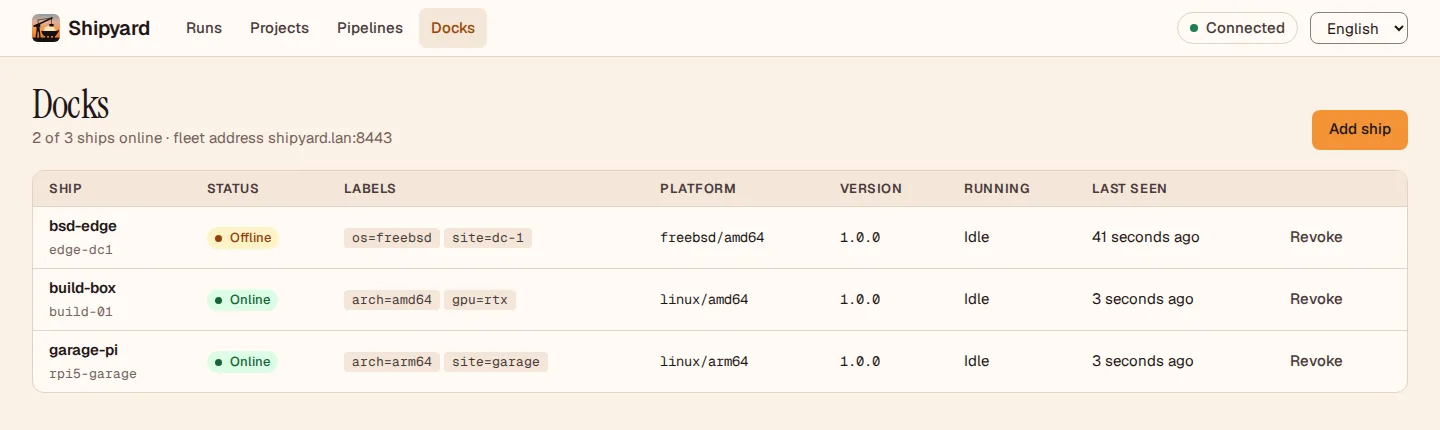
Docks lists the ships joined to this Shipyard — online, offline or revoked — with their labels, platform, version and the run they are executing. Add ship creates a one-time join command; Revoke cuts a ship off. The run panel shows where each run ran. See Ships and docks.
Language
The console is in English. Choose Polski in the top bar to switch; the choice is remembered in this browser. Add ?lang=pl to a link to open it in Polish.